Connecting to a USB drive from mobile devices via WebDAV
Keenetic routers support the WebDAV protocol for remote access to files and folders on a USB drive connected to your router. WebDAV access is available through our cloud-based domain name service KeenDNS.
Important
A key feature of WebDAV implementation in Keenetic is the ability to remotely read and write files on the drive, even if a private IP address is used for Internet access.
To remotely access files and folders on your USB drive, you need to run a WebDAV-enabled file manager on your mobile device and set up a connection to the router. By connecting to the USB drive from the file manager via the Internet, you can add, delete, copy, and move files and folders as you would on a local device.
First, register a KeenDNS name on your Keenetic router. You can do this through the router's web interface.
Then, in the mobile app, under Management > KeeneticOS > Components, ensure the WebDAV server component is installed in the router's operating system. It must be there; otherwise, you won't see the WebDAV application in the router's settings.

Configuring the WebDAV server
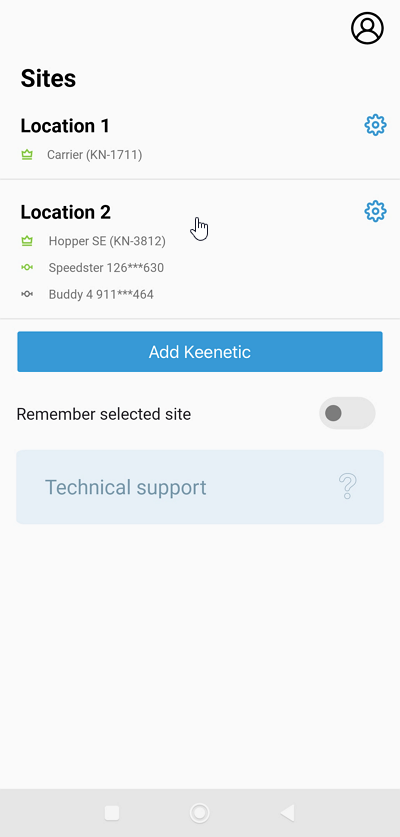
The Sites start screen will show all the networks added for management. Tap on the desired network.
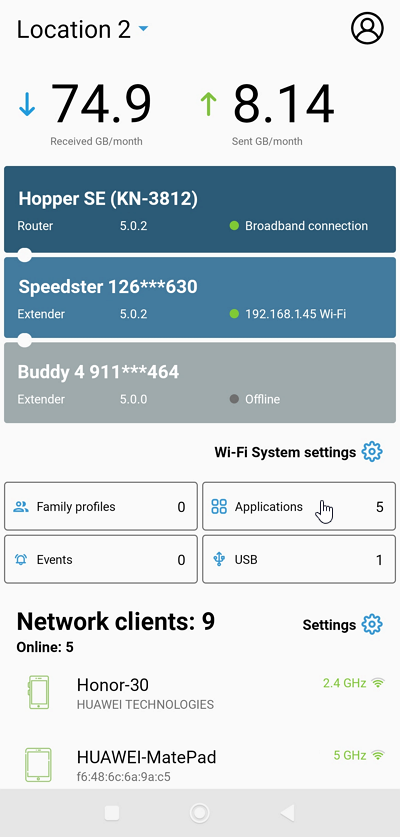
On the selected network dashboard, tap on Applications.
In the list of installed applications, tap on WebDAV.

On the WebDAV options screen, set the Active switch to on (by default, the WebDAV server is disabled). Enable the Allow access from the Internet option.

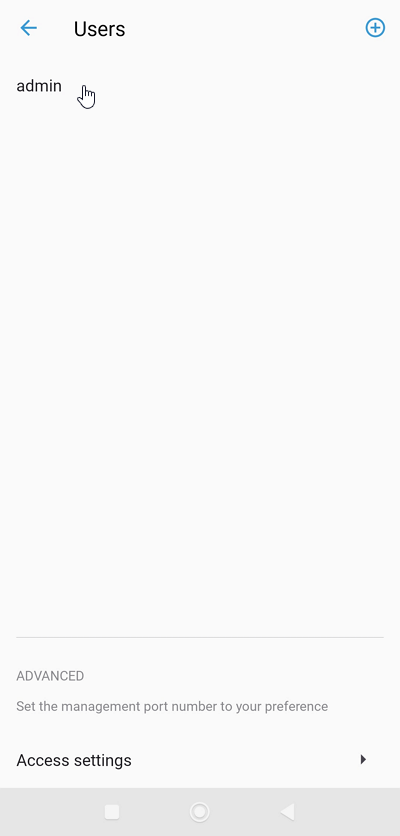
In the Users subsection, you can add a new user account or grant access to the router administrator (admin).
Click on Manage users, then click on the entry for a previously created account or create a new user.

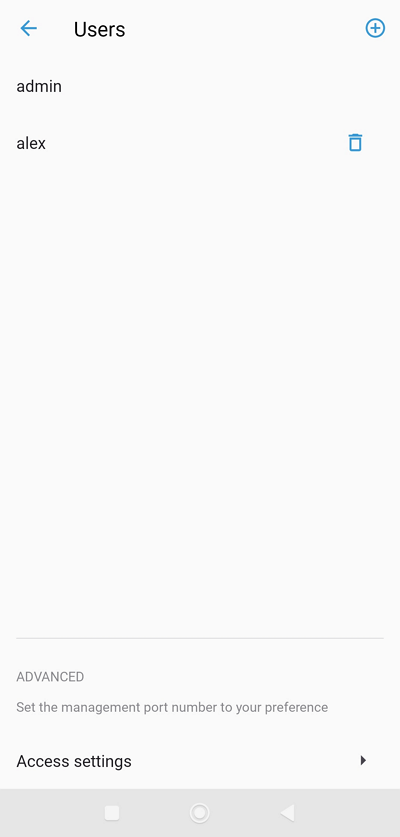
You can use the WebDAV option for the user you wish to allow remote access via the protocol specified.
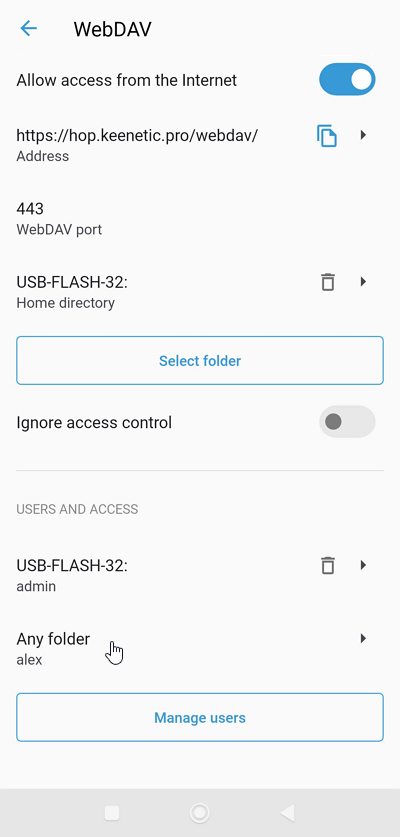
You can select the desired directory on the USB drive for a specific user.
Tap on the user and directory entry.
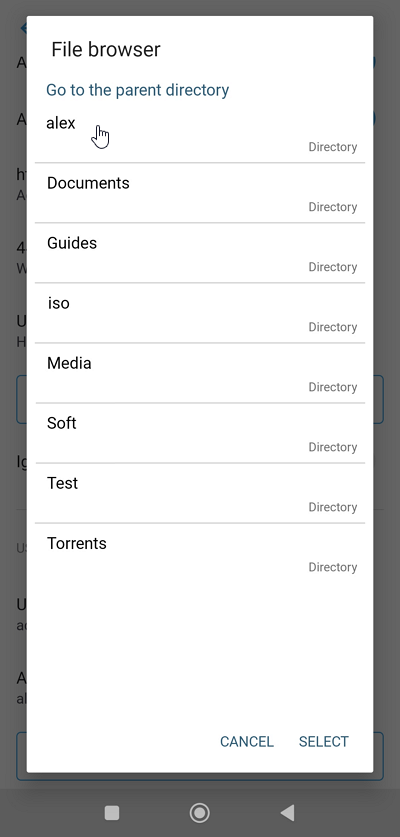
Select the desired directory on the USB drive and tap Select.
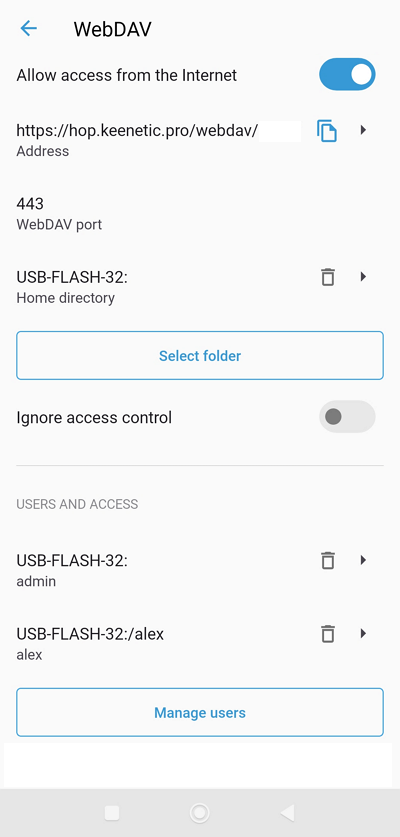
This completes the configuration of the WebDAV server.
Now set up access to the server from a mobile device using a file manager with WebDAV accessibility.
Important
If the client cannot connect to the WebDAV server, try enabling the Ignore access control option in the server settings.

This option does not override the requirement to enter a password when connecting to the drive and does not grant anonymous access. Enabling this option allows you to ignore the permissions already set for the folders on the USB drive.
You can also configure the WebDAV server via the router's web interface. To do this, refer to the detailed instructions Connecting to a USB drive via WebDAV.
Setting up a connection on Android
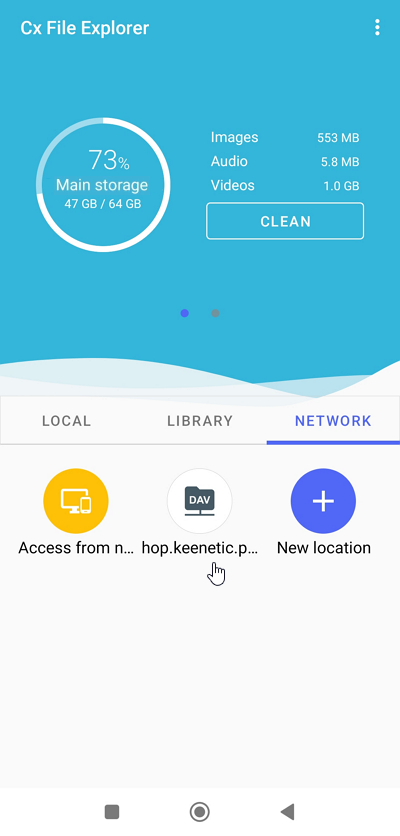
In our example, we will use Cx File Explorer. But it can also be other applications that know how to use the WebDAV protocol (Total Commander, Solid Explorer File Manager, RS File, etc.).

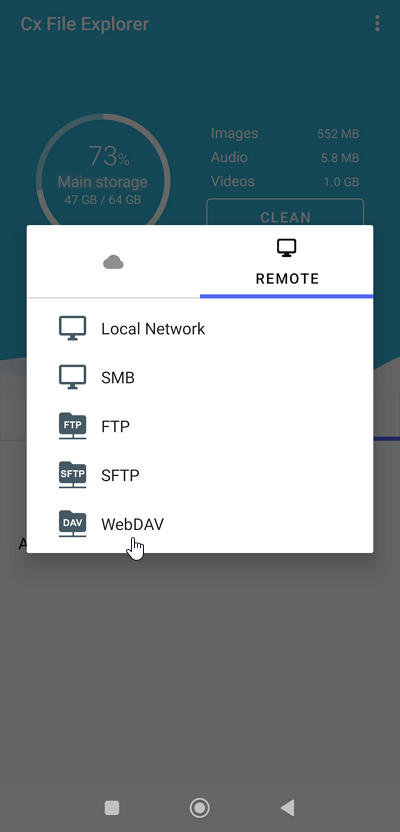
Enter the router address in the Host field. In our example, it is hop.keenetic.pro/webdav/. Enter the KeenDNS name and add /webdav/ at the end of the address.
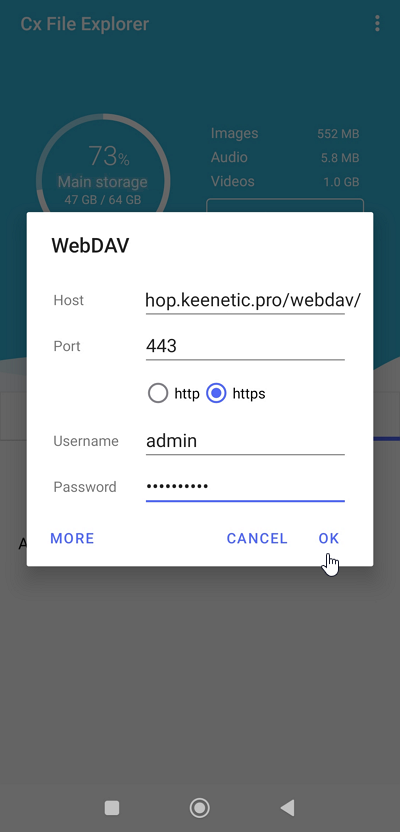
In the Username and Password fields, type the name of the account allowed to access the WebDAV server (admin in our example) and the password for that account.
Important
To connect to the router via third-party applications, we recommend creating a separate user account with WebDAV Server access permission only. For security reasons, do not use the router's administrator account; specify a user account with restricted rights.
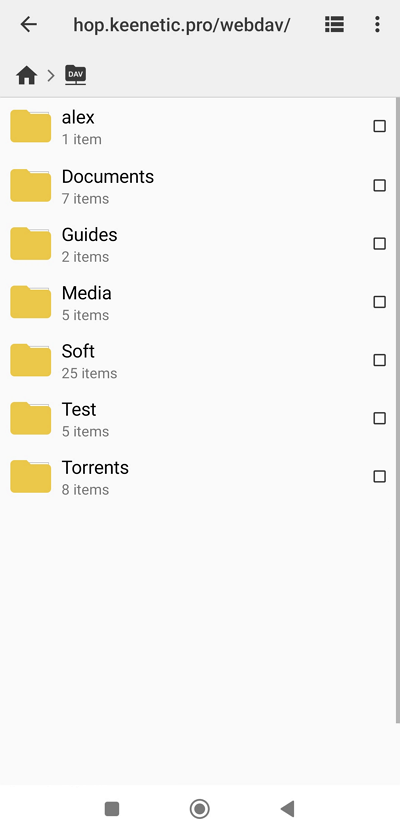
You will see the folders and files on the USB drive if the connection is successful.
A similar setup can be done on iOS mobile devices. For example, you can use the following apps that support the WebDAV protocol: ES File Explorer, WebDAV Manager, Documents by Readdle, etc.