How to hide SSID
The Hide SSID feature is used to enhance wireless connection security. This feature hides the wireless network's Service Set Identifier (SSID). When enabled, the access point will not appear in the list of available wireless networks on user devices (its SSID will not be visible). However, users who are aware of the network's existence and know its SSID will still be able to connect to it.
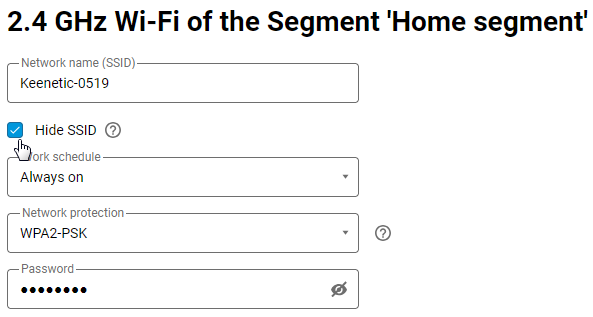
In the web interface, on the My Networks and Wi-Fi page, in the Home segment tab, under the 2.4 GHz Wireless Network section, click Advanced settings. In the Wi-Fi settings window that appears, enable the Hide SSID option. Then save the settings.
Important
After enabling this option, the access point will stop broadcasting its SSID in service frames and will only broadcast its BSSID. Client devices that were previously configured to connect to this Wi-Fi access point will no longer automatically connect to it. To connect to this access point, you will need to manually add the Wi-Fi network on the client device, specifying the known SSID name and security settings.
Disabling SSID broadcasting stops the router from sending the network's ID, making it invisible to users; however, the router will still broadcast traffic on the wireless network.
This option should not be considered a serious means of increasing Wi-Fi network security. First and foremost, it will prevent curious neighbours from learning about the existence of your network, but advanced attackers will still be able to find such a network if necessary.
To protect against accidental intruders and hackers, we recommend first and foremost using a complex password for your Wi-Fi connection and dividing your network into segments (for example, one network for personal devices, another for smart home devices, another for guests, etc.), use a modern and secure network protection protocol (WPA2 and WPA3), and update your router's OS.
To disable this option, uncheck Hide SSID and save the settings. After that, you will see the access point again on the air and in the list of available networks on client devices.
Note
Please note the specifics of how Apple mobile devices work with access points in hidden SSID mode. For example, if you connect an iPhone/iPad/MacBook to an access point and then hide it (enable Hide SSID mode), these client devices will no longer be able to connect to the access point. If you first enable Hide SSID mode on the access point and then manually configure the connection to the hidden network, the devices will be able to connect correctly.