Updating the OS on all Mesh Wi-Fi System nodes
Starting with KeeneticOS version 4.2, you can update the OS on all devices in the Wi-Fi System with a single click in the web interface of the Main Router (controller). In addition, you can enable automatic updates for connected extenders according to the Main Router's schedule. In this case, the OS will be automatically updated on all nodes using the same update channel with the controller.
Tip
To achieve the best performance of the Mesh Wi-Fi System, it is recommended to use the same OS version on all system nodes. Optimal efficiency may not be achieved if the Wi-Fi System nodes use different software versions.
Go to the Mesh Wi-Fi System page in the Main Router's web interface. The Nodes tab displays all devices acquired by the Wi-Fi System in a single table. If an update is available for at least one node of the Wi-Fi System, the Update KeeneticOS on all nodes button appears.
The KeeneticOS column shows the current operating system versions and the availability of updates. To install the latest version of the operating system on your devices, click Update KeeneticOS on all nodes. The OS update process will start on those Wi-Fi System nodes for which a new OS version is available.
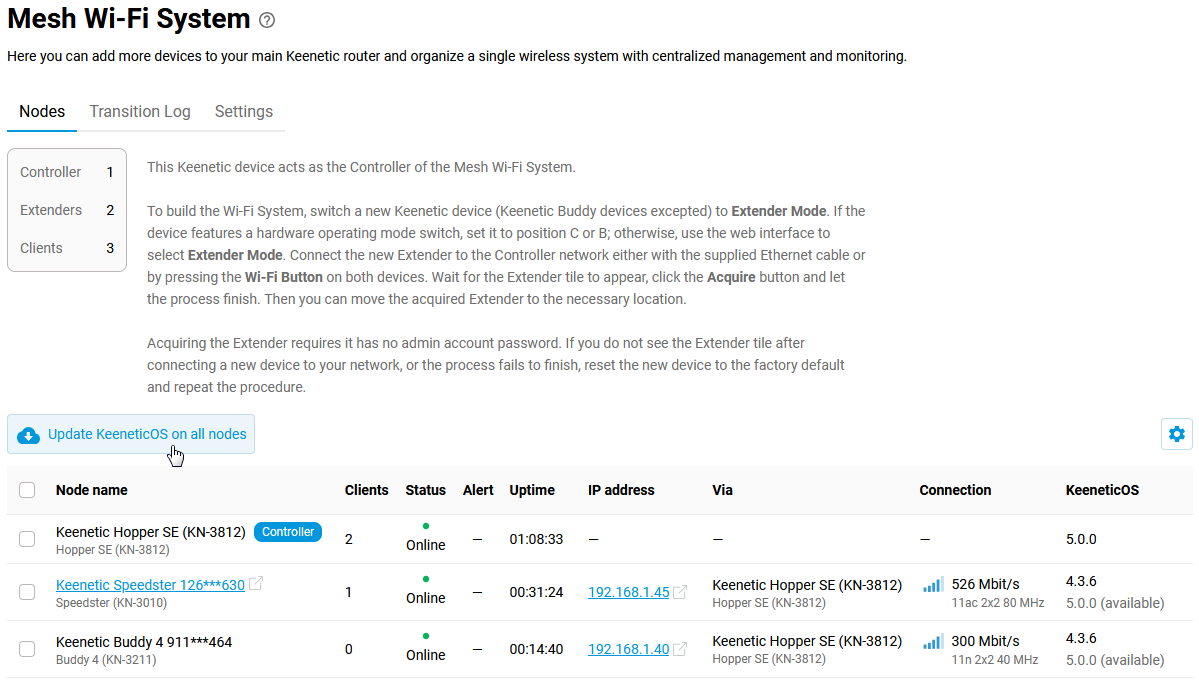
The interface also allows you to select only specific devices for updating. When you choose a device, the Update button will appear instead of the Update KeeneticOS on all nodes button.

When updating KeeneticOS on all nodes, the update process starts on the extenders first, and the Wi-Fi System controller is updated last. If the System has extenders connected in a chain (via other extenders), they are updated in order, one after another, from far to near. The extenders directly connected to the controller are updated last.
During the operating system update process, statuses appear in the KeeneticOS column, showing the progress of the update.

When an update is in progress on a specific device, the other nodes are on hold, i.e., the update process on the devices occurs sequentially. If necessary, you can cancel the update of a specific device by clicking on the cross on the right side of the status.
After installing the update, the extender reboots and briefly loses connection to the controller. The Status column will display Offline, but after a successful boot and connection, the repeater will be Online again.

On the Settings tab, you can enable or disable the option to automatically update the operating system on all nodes that use a single update channel with the controller.

If Automatic Updates is enabled in the Wi-Fi System settings on the controller, this setting is blocked on the extenders, as auto-update control is only possible from the controller. The auto-update channel selected on the controller is transmitted to the extenders.
Here, you can also set a schedule for automatic updates.
